

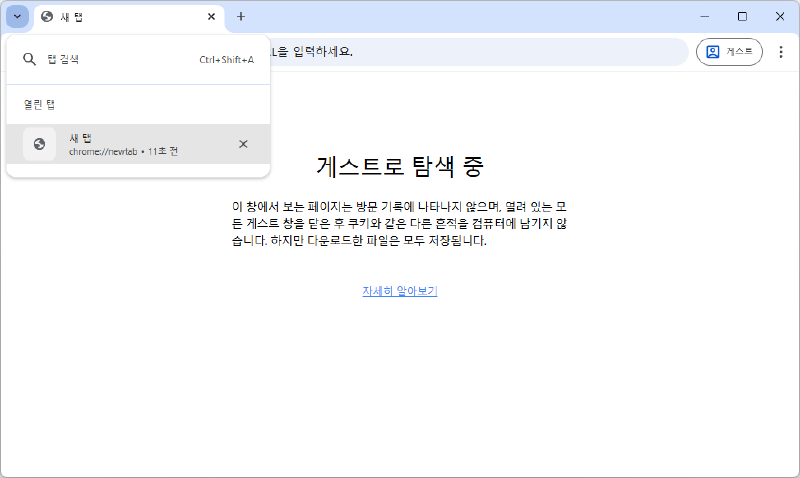
When using the Chrome browser, you’ll notice a Tab Search button displayed next to the address bar.
While it can be useful when you have many tabs open, for users like me who never use this feature, it’s simply an unnecessary element.
In this guide, I’ll show you how to completely remove this button using Chrome’s experimental features (Flags) settings.
What is the Tab Search Button?#
The Tab Search button is a small downward arrow (▼) icon located next to the address bar at the top of the Chrome browser. Clicking it provides functionality to search and manage all currently open tabs.
However, for users who don’t open many tabs or prefer keyboard shortcuts, it can be an unnecessary waste of space.
How to Remove It#
Step 1: Access the Chrome Flags Page#
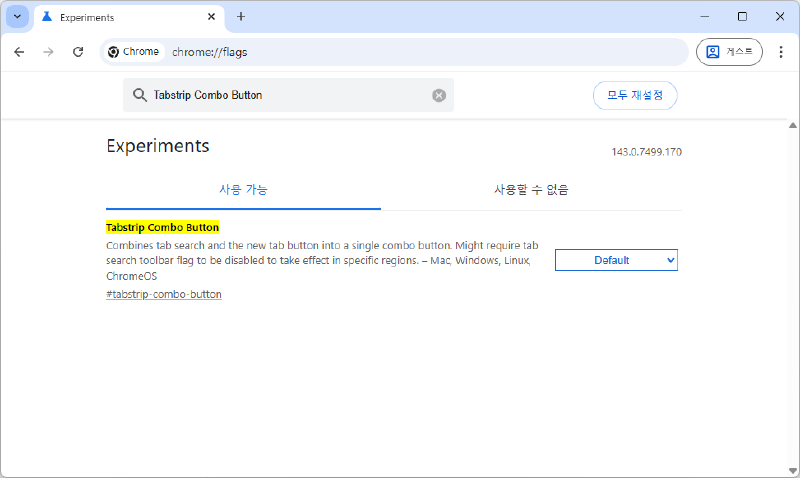
Type chrome://flags into your Chrome browser’s address bar and press Enter.
chrome://flags is a page for managing Chrome’s experimental features. Modifying various settings can cause issues, so be careful not to change other settings.Step 2: Find Tabstrip Combo Button#
Use the search box at the top of the page or press Ctrl + F to search for Tabstrip Combo Button.
Step 3: Change to Enabled#
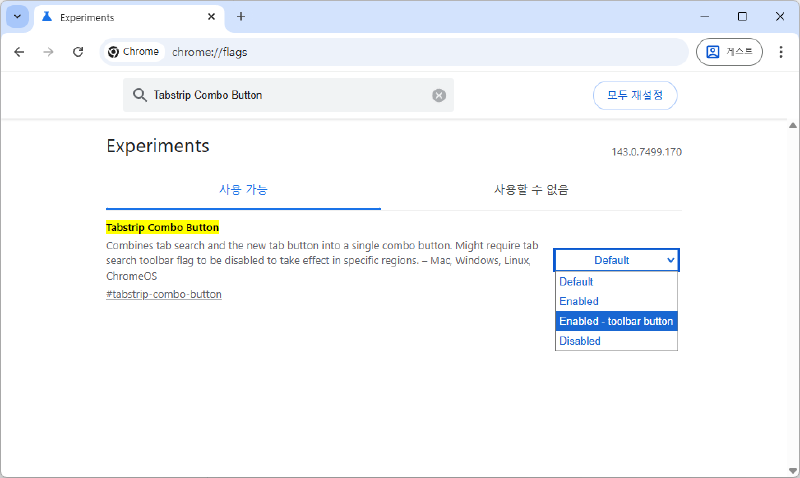
Click the dropdown menu for the Tabstrip Combo Button item and select either Enabled or Enabled - toolbar button.
Step 4: Restart Chrome#
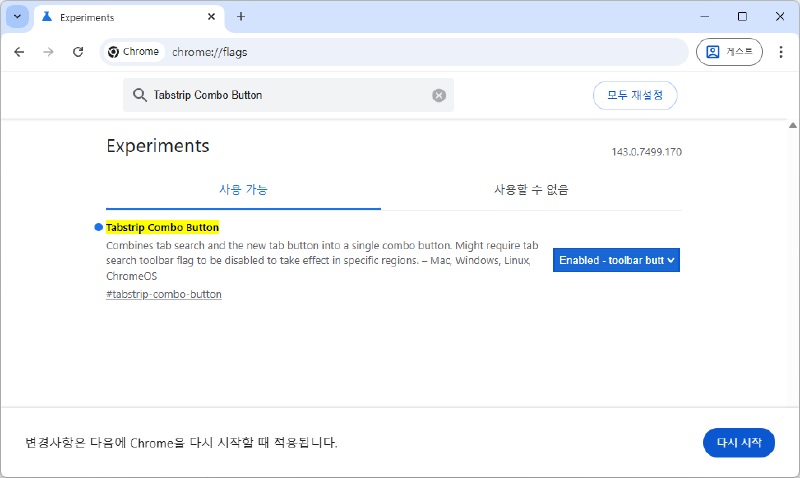
After changing the setting, a Relaunch button will appear at the bottom of the page. Click this button to restart Chrome and apply the changes.
Verify the Results#
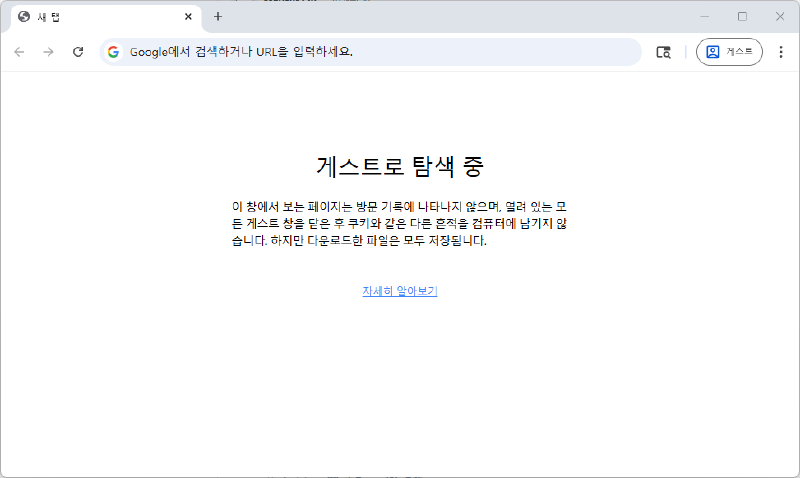
Once Chrome restarts, you’ll notice the tab search button next to the address bar has disappeared. Enjoy browsing with a cleaner and more spacious interface.
Reverting to Default#
If you want to display the tab search button again, simply access the chrome://flags page using the same method, change the Tabstrip Combo Button item to Default, and restart Chrome.
Conclusion#
Using Chrome’s Flags settings allows you to customize your browser to suit your preferences. However, since these are experimental features, settings may be reset or changed with future Chrome updates.
While you can customize extensively by modifying Flags features, be careful as incorrect settings may cause inconveniences when using the browser.