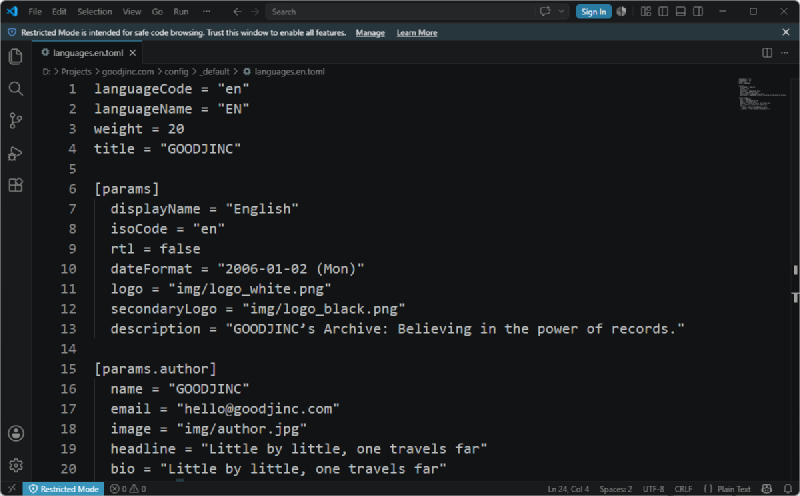
When using Visual Studio Code, you might want to quickly change the font size depending on your screen size or resolution.
Manually entering a number in the Settings window (Ctrl + ,) every time can be quite tedious.
Let’s change the settings to zoom the font in and out using simple mouse controls.
Why Enable This Feature?#
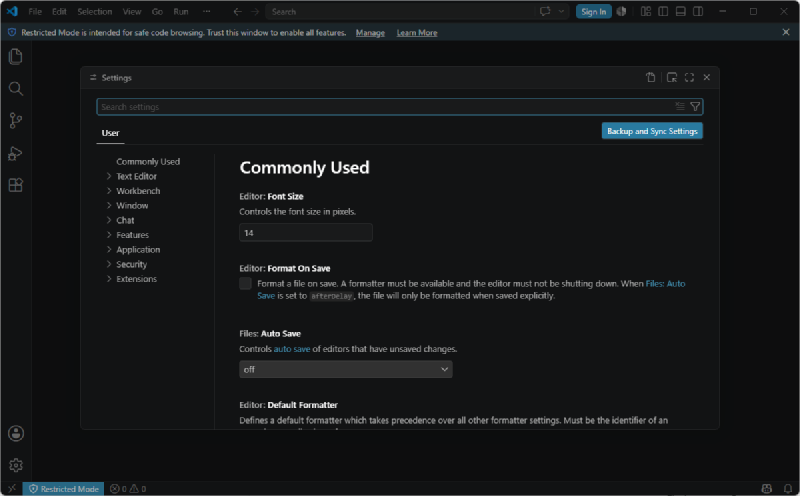
In web browsers and other text editors, zooming in or out by scrolling the mouse wheel while holding Ctrl is typically enabled by default.
However, by default in VS Code, the editor font size zoom via mouse wheel is disabled.
Enabling this feature can greatly improve your workflow efficiency when presenting code or trying to fit more code on the screen at a glance.
How to Enable It#
Press
Ctrl + ,in VS Code to open Settings.Search for
Editor: Mouse Wheel Zoomin the search bar.Check the checkbox for the option to enable it (
true).
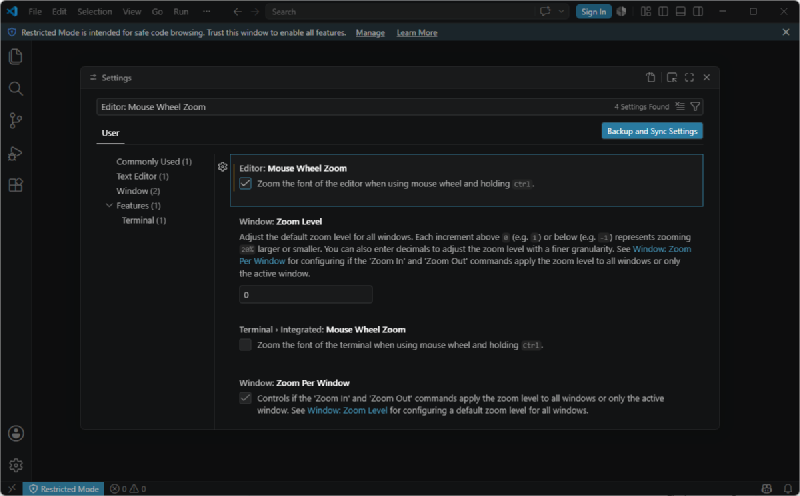
- Return to your editor and scroll the mouse wheel up or down while holding down the
Ctrlkey to confirm that the font size changes in real time.