

When disconnecting dual monitors or adjusting screen resolutions, you might encounter a situation where a program is running but nowhere to be seen on the screen.
I personally experience this glitch occasionally when launching Todoist after a fresh boot. I can see the icon active on the taskbar, but the actual window is completely missing from the desktop.
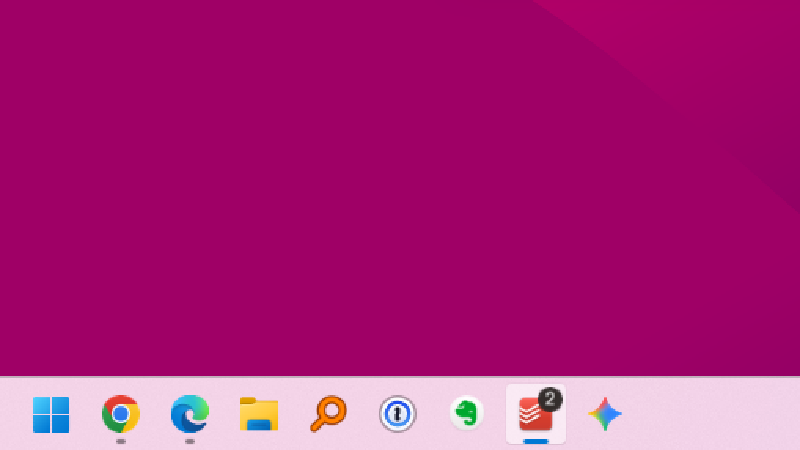
This phenomenon usually occurs due to a “coordinate mismatch” in Windows. Here are the three most effective methods I use to solve this problem.
Method 1. Relocate Using Windows Snap (Win + Arrow Keys)#
This is the simplest and most effective way. It forces the window to snap to your current monitor, overriding its previous off-screen coordinates.
- Click the program icon on the taskbar to ensure it is the active (focused) window.
- Press
Win + ←orWin + →several times. - The window will eventually snap to the left or right side of your current monitor and become visible.
This shortcut is also incredibly useful for multitasking or viewing two documents side-by-side during your daily workflow.
If Snap Assist doesn’t do the trick, try the next method.
Method 2. Jump Between Monitors (Win + Shift + Arrow Keys)#
This method is ideal when a window is stuck on a second monitor that has been turned off or disconnected.
- Shortcut:
Win + Shift + ←or→ - Description: This command
jumpsthe active window from one monitor to another. Even if you can’t see the window, this shortcut will move it directly to your primary display.
Method 3. Use the ‘Move’ Function via System Menu (Shift + Right-Click)#
This is a classic and powerful method to use when shortcuts alone aren’t working.
- Hover your mouse over the program icon on the taskbar.
- Hold the
Shiftkey and Right-click the icon.
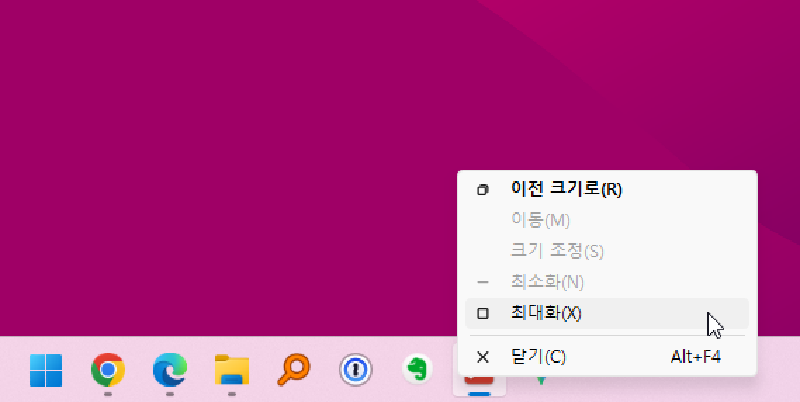
- Select [Move] from the menu. (I personally find [Maximize] even more effective in many cases.)
- Your mouse cursor will turn into a crosshair. At this point, press any arrow key once.
- Move your mouse, and you will see the missing window “stuck” to your cursor. Simply click to place it where you want.
Quick Guide#
| Situation | Recommended Method |
|---|---|
| Window is partially hidden | Win + Arrow Keys |
| Using multi-monitors | Win + Shift + Arrow Keys |
| Window is completely invisible | Shift + Right-click > Move or Maximize |
Conclusion#
A window disappearing off-screen is less of a system error and more of a mismatch between the last saved position and your current display environment.
By keeping these three methods in mind, you can stay calm and get back to work immediately whenever your apps decide to go on a “hidden” adventure.