

When using CIMON SCADA, an industrial automation software, you might find that CIMON-related file extensions remain in the New right-click context menu on your desktop or File Explorer, even after cleanly uninstalling the program via the Control Panel.
Encountering these lingering context menu remnants can be highly frustrating. Having as many as 11 unnecessary extensions—such as .cmt, .bdx, and .sch—cluttering your menu is visually messy and reduces workflow efficiency.
This issue occurs because the extension keys registered under the HKEY_CLASSES_ROOT path in the Windows Registry are not completely cleared during uninstallation, even though the core program has been removed.
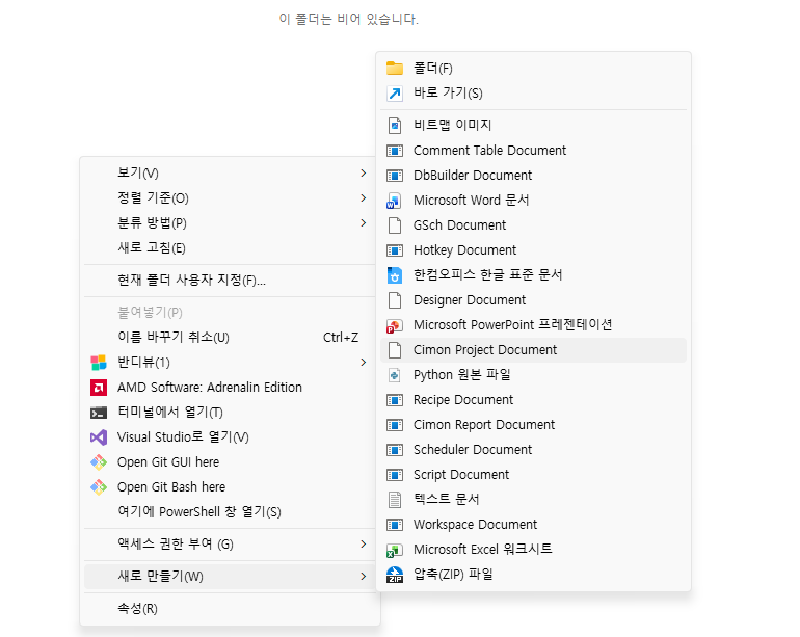
In this guide, we will walk through how to quickly remove or restore these leftover CIMON SCADA context menu items simply by modifying registry files.
1. Quick Setup via Registry Files#
Manually opening the Registry Editor (regedit) to find and delete 11 different extensions is tedious. For a hassle-free approach, we have prepared one-click configuration files. First, let’s look at the underlying code structure.
① Batch Deleting Menu Remnants#
This registry code completely removes the 11 leftover CIMON SCADA extensions (.cmt, .bdx, .gsh, .hkd, .PGX, .prj, .rcp, .rpt, .sch, .scx, .WGX) from the right-click context menu.
After downloading the file, simply double-click to run it, and the remnants will be cleared.
If the changes do not apply immediately, follow the steps in 3. Applying Changes Immediately (Restarting File Explorer) to restart Windows Explorer.
Source Code:
Windows Registry Editor Version 5.00

[-HKEY_CLASSES_ROOT\.cmt]
[-HKEY_CLASSES_ROOT\.bdx]
[-HKEY_CLASSES_ROOT\.gsh]
[-HKEY_CLASSES_ROOT\.hkd]
[-HKEY_CLASSES_ROOT\.PGX]
[-HKEY_CLASSES_ROOT\.prj]
[-HKEY_CLASSES_ROOT\.rcp]
[-HKEY_CLASSES_ROOT\.rpt]
[-HKEY_CLASSES_ROOT\.sch]
[-HKEY_CLASSES_ROOT\.scx]
[-HKEY_CLASSES_ROOT\.WGX]
File Download:
After downloading and executing the file, please restart Windows Explorer by following the steps in 3. Applying Changes Immediately (Restarting File Explorer).
② Restoring Default Extension Keys (Backup Option)#
Since creating these file extensions via the right-click menu during normal SCADA usage is rare, you will likely not need to restore them.
However, if you plan to reinstall CIMON SCADA in the future and the extensions fail to reappear automatically, you can use this registry code to restore them.
Downloading and double-clicking this file will regenerate the default key structures for the corresponding extensions.
Source Code:
Windows Registry Editor Version 5.00

[HKEY_CLASSES_ROOT\.cmt]
[HKEY_CLASSES_ROOT\.bdx]
[HKEY_CLASSES_ROOT\.gsh]
[HKEY_CLASSES_ROOT\.hkd]
[HKEY_CLASSES_ROOT\.PGX]
[HKEY_CLASSES_ROOT\.prj]
[HKEY_CLASSES_ROOT\.rcp]
[HKEY_CLASSES_ROOT\.rpt]
[HKEY_CLASSES_ROOT\.sch]
[HKEY_CLASSES_ROOT\.scx]
[HKEY_CLASSES_ROOT\.WGX]
File Download:
2. Direct Setup via Command Prompt (CMD)#
If you feel uncomfortable downloading external files, you can manually delete each key by copying and pasting the following commands directly into the Command Prompt (CMD).
① Running CMD as Administrator#
Modifying the HKEY_CLASSES_ROOT hive requires elevated privileges. Search for CMD in the Windows Start menu, right-click it, and select [Run as administrator].
② Deleting Extension Keys Directly#
Copy all the lines below, paste them into the Command Prompt window simultaneously, and press Enter to execute them.
reg delete "HKCR\.cmt" /f
reg delete "HKCR\.bdx" /f
reg delete "HKCR\.gsh" /f
reg delete "HKCR\.hkd" /f
reg delete "HKCR\.PGX" /f
reg delete "HKCR\.prj" /f
reg delete "HKCR\.rcp" /f
reg delete "HKCR\.rpt" /f
reg delete "HKCR\.sch" /f
reg delete "HKCR\.scx" /f
reg delete "HKCR\.WGX" /f
3. Applying Changes Immediately (Restarting File Explorer)#
The extensions may not disappear from the “New” menu immediately after editing the registry.
If this happens, you can either reboot your computer or use the following method to restart Windows Explorer, which flushes the icon and menu cache.
① Press Ctrl + Shift + Esc to open the Task Manager.
② Locate the Windows Explorer process, right-click it, and select [Restart].
③ Alternatively, run the following command in an administrative CMD window to force a restart of the Explorer process:
taskkill /f /im explorer.exe & start explorer.exeWrapping Up#
It is quite disappointing that a professional software leaves behind legacy data after a standard uninstallation, forcing users to manually modify the registry.
A query regarding this issue was posted on the official CIMON website’s Q&A board last year, yet no official technical documentation or guide has been provided.
While failure to clear these entries completely might only affect a small number of users, it would be ideal if the vendor addressed these deployment issues.
If you encounter similar cleanup bugs with other software, this registry-based approach can serve as a highly effective troubleshooting template.
With a few simple registry adjustments, you can restore your Windows environment to a clean and organized state.