

I subscribe to Microsoft 365 Business Standard for a custom-domain email address and the Microsoft Office apps.
I sign in to Windows with a personal Microsoft account, but I use my Microsoft 365 business account for OneDrive.
Even after selecting Unlink this PC for the personal account, Personal OneDrive reappeared alongside OneDrive for Business after restarting the computer and continued to prompt me to sign in.
Disabling OneDrive in Startup Apps was not a good solution because it would also prevent my work OneDrive from starting automatically when I signed in to Windows. In this guide, I will show you how to disable Personal OneDrive while keeping your work or school OneDrive account active.
Why the Personal OneDrive Sign-In Prompt Keeps Appearing#
If you use a personal Microsoft account in Windows, OneDrive can detect that account and display a prompt asking you to sign in.
As a result, the OneDrive - Personal icon may reappear even after you unlink the account from OneDrive.
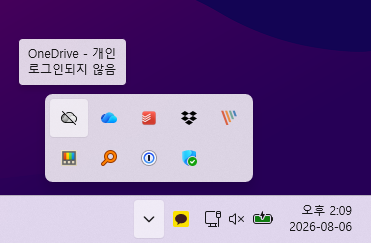
To solve the problem, you need to configure two separate settings:
- Block OneDrive from syncing with personal Microsoft accounts.
- Stop OneDrive from detecting the personal account and displaying a sign-in prompt.
Why I Did Not Disable OneDrive in Startup Apps#
Personal OneDrive and OneDrive for work do not use separate applications. Both accounts use the same OneDrive.exe process.
If you disable OneDrive under Startup apps in Task Manager, your work OneDrive will not start automatically either.
To keep your work files syncing automatically, it is better to apply policies that target personal accounts instead of disabling the entire OneDrive application.
Disable Personal OneDrive Only#
Incorrectly changing the registry can cause Windows or installed applications to stop working properly. Enter the commands below exactly as shown and do not modify other registry values.
Right-click the Start button and select Terminal (Admin).
When the User Account Control prompt appears, select Yes. Then run the following commands one at a time:
reg add "HKCU\SOFTWARE\Policies\Microsoft\OneDrive" /v DisablePersonalSync /t REG_DWORD /d 1 /f
reg add "HKLM\SOFTWARE\Policies\Microsoft\OneDrive" /v DisableNewAccountDetection /t REG_DWORD /d 1 /f
The two registry values serve different purposes:
DisablePersonalSync: Prevents users from setting up or syncing OneDrive with a personal Microsoft account.DisableNewAccountDetection: Stops OneDrive from detecting a personal Microsoft account and displaying a sign-in prompt.
Once both commands return The operation completed successfully, restart your computer.
At first, I configured only DisablePersonalSync, but the Personal OneDrive sign-in prompt continued to appear. I then added DisableNewAccountDetection to hide the prompt triggered by personal account detection.
After restarting Windows, confirm that the Personal OneDrive prompt is gone and that files in your work OneDrive are still syncing normally.
These settings block Personal OneDrive syncing, but they do not delete files that have already been downloaded to your computer.
Restore the Original Settings#
If you want to use Personal OneDrive again, open Terminal (Admin) and run the following commands one at a time:
reg delete "HKCU\SOFTWARE\Policies\Microsoft\OneDrive" /v DisablePersonalSync /f
reg delete "HKLM\SOFTWARE\Policies\Microsoft\OneDrive" /v DisableNewAccountDetection /f
Restart your computer after the commands finish. You can then sign in to OneDrive with your personal Microsoft account and set up syncing again.
Conclusion#
Disabling the entire OneDrive application in Startup Apps can also prevent your work account from starting automatically.
By applying the DisablePersonalSync and DisableNewAccountDetection policies together, you can block personal account syncing and hide the Personal OneDrive sign-in prompt while continuing to use OneDrive for Business.
For more information about these settings, see the official Microsoft OneDrive policy documentation.