

When using Windows 11, you may notice that a Snap Layout automatically appears when you drag a window toward the top of the screen.
This feature can be useful when you want to arrange multiple windows neatly, but it can also feel distracting if you are simply trying to move a window around.
I found it annoying whenever the layout panel appeared at the top of the screen while I was organizing windows or moving programs, so I turned this option off.
In this post, I will show you how to disable the Snap Layout that appears at the top of the screen when dragging windows in Windows 11.
1. The Snap Layout That Appears When Moving a Window#
In Windows 11, Snap Layouts help you arrange windows automatically when you drag them to certain areas of the screen.
For example, when you drag a window to the top of the screen, several layout options appear as shown below.

This is helpful when working with multiple open windows, but it can become inconvenient if it appears every time you are only trying to move a window.
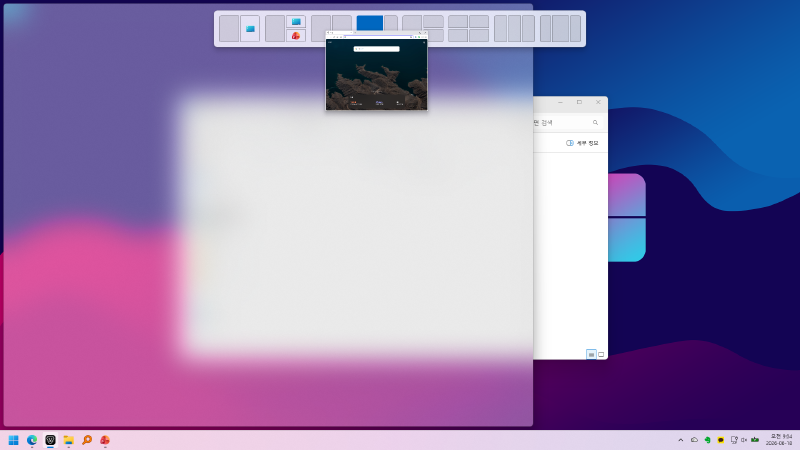
If you often move windows around, the layout panel can feel especially distracting because it appears even when you briefly drag a window near the top of the screen.
2. Disable the Snap Layout in Windows 11#
You can disable this Snap Layout behavior easily from Windows Settings.
First, press Win + I on your keyboard to open Settings.
Then go to the following path.
Windows Settings > System > Multitasking
On the Multitasking page, look for the Snap windows section.
You can turn off Snap windows entirely, but if you want to keep window snapping enabled and only hide the layout that appears at the top of the screen, expand the detailed options instead.
Click the arrow on the right side of Snap windows, then uncheck the following option.
Show snap layouts when I drag a window to the top of my screen
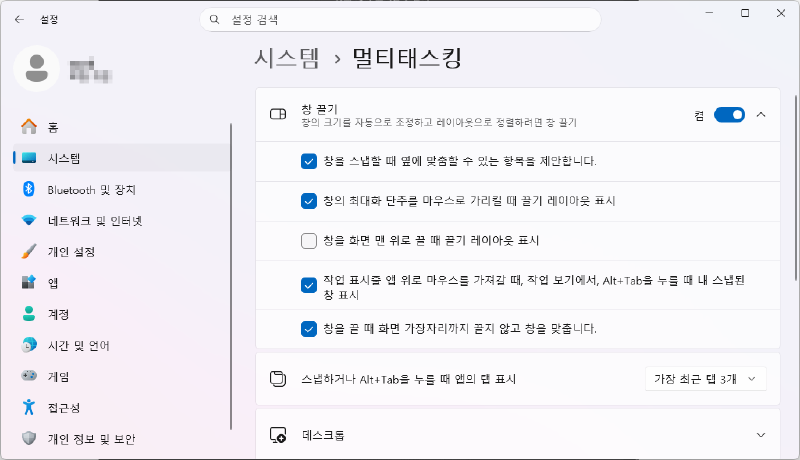
Once this option is turned off, the Snap Layout panel will no longer appear automatically when you move a window toward the top of the screen.
3. What Changes After Turning This Off#
After changing the setting, try dragging a window toward the top of the screen again. The layout selection panel should no longer appear as it did before.

However, this does not turn off the entire Snap feature.
For example, if you drag a window to the left or right edge of the screen, you can still snap it to half of the screen as usual.
In other words, this setting only turns off the drag layout that automatically appears at the top of the screen, while keeping the rest of the window snapping features available.
4. What If You Want to Disable Snap Completely?#
If you find not only Snap Layouts but also automatic window arrangement itself inconvenient, you can turn off Snap windows entirely.
The path is the same.
Settings > System > Multitasking > Snap windows
If you turn off Snap windows, Windows will no longer automatically arrange windows when you move them to the edges of the screen.
However, this also disables useful snapping behavior, such as splitting windows to the left and right sides of the screen. For that reason, I personally recommend turning off only the option below instead of disabling the whole feature.
Show snap layouts when I drag a window to the top of my screen
With this setup, you can keep the window snapping features you need while reducing the unnecessary layout panel that appears whenever you move a window near the top of the screen.
Conclusion#
Snap Layouts in Windows 11 are useful for arranging multiple windows efficiently.
But if the layout panel appearing at the top of the screen every time you move a window feels distracting, you can disable it easily in Settings.
Because Windows 11 lets you turn off only the top Snap Layout prompt without disabling the entire Snap feature, this is a useful setting for anyone who wants to keep window snapping available while reducing unnecessary on-screen interruptions.