

While using your PC, you might suddenly encounter a glitch where your wallpaper disappears, leaving only a pitch-black screen.
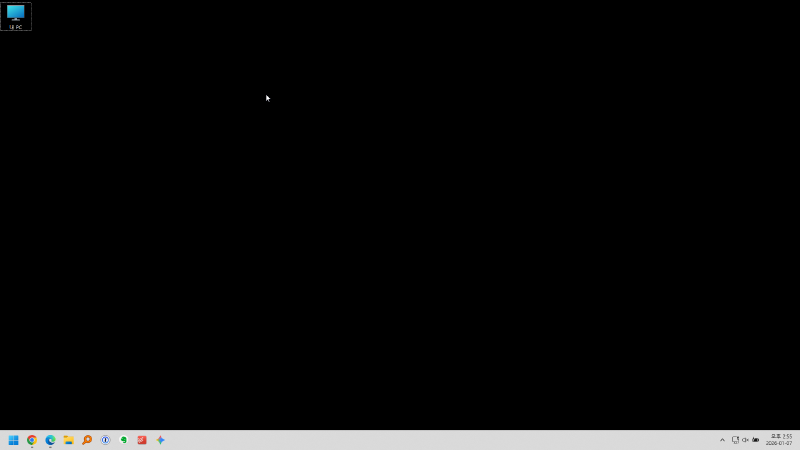
If only the background has turned dark while other functions remain responsive, simply restarting Windows Explorer will usually solve the problem.
The exact cause can be elusive—it happens during heavy multitasking, while running high-end software, or sometimes even when the system isn’t under any particular stress.
In this guide, I will show you the fastest way to fix this issue.
1. Accessing Windows Task Manager#
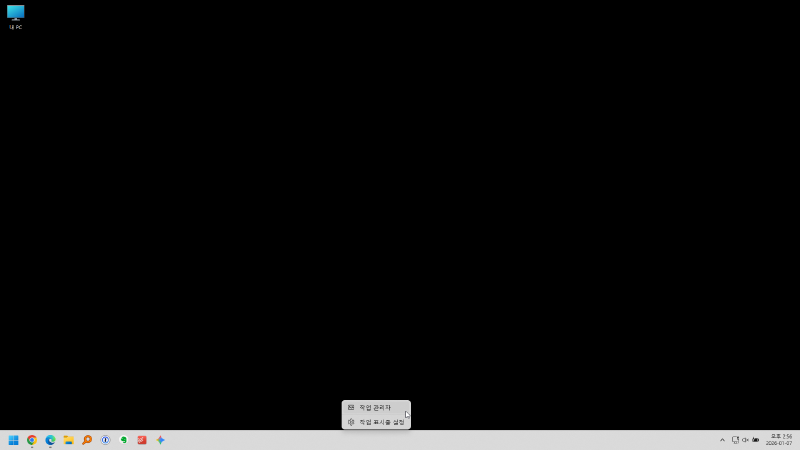
To control system processes, you first need to open the Task Manager.
- Method 1: Press the shortcut
Ctrl + Shift + Escsimultaneously. - Method 2: Right-click on the Windows Taskbar and select
Task Manager.
2. Restarting the Windows Explorer Process#
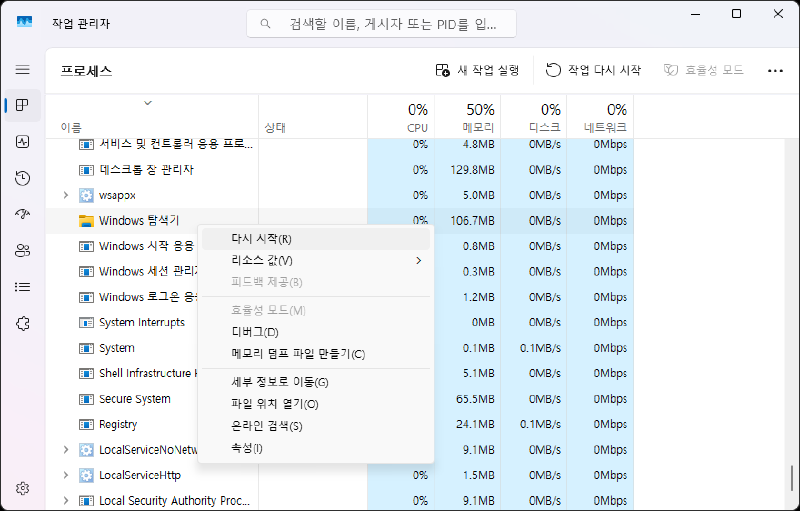
To resolve the glitch, we need to refresh the Windows Explorer (explorer.exe) process.
- Click on the
[Processes]tab at the top of the Task Manager. - Locate
Windows Explorerin the list. (Pro tip: PressWon your keyboard to find it faster.) - Right-click on it and select
[Restart].
3. Verifying the Recovery#
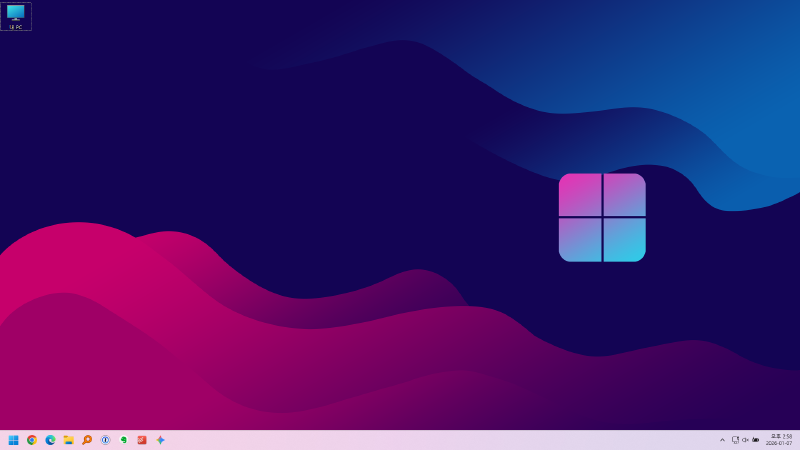
- Once you click
[Restart], the taskbar and desktop icons will briefly disappear and then reappear. - Wait a few moments to confirm that the missing wallpaper has been restored to normal.
Win + R, type explorer.exe, and hit Enter to manually launch the process.(Optional) Solving via Command Prompt (CMD)#
If you prefer using a single command for a faster fix without mouse interaction, follow these steps:
- Press
Win + R, typecmd, and press Enter. - Copy and paste the following command, then hit Enter:
taskkill /f /im explorer.exe & start explorer.exe- This will achieve the same result as the manual steps above.
Conclusion#
The “black screen wallpaper” phenomenon is often attributed to a lack of system resources or a conflict within the Explorer process.
However, in my experience, it can happen quite frequently even when resources are plentiful and no major programs are running.
While rebooting your computer technically solves the issue, it is time-consuming. Using the Restart Explorer method is by far the most efficient way to get back to your workflow immediately.